GPU Bottleneck Explained: Why Your New Graphics Card Isn't Getting Full FPS
The same PC can be CPU-bound at 1080p and perfectly GPU-bound at 4K. Resolution changes which component actually limits your frame rate — here's the real math.
GPU Bottleneck Explained: Why FPS Doesn’t Scale With Your New Card
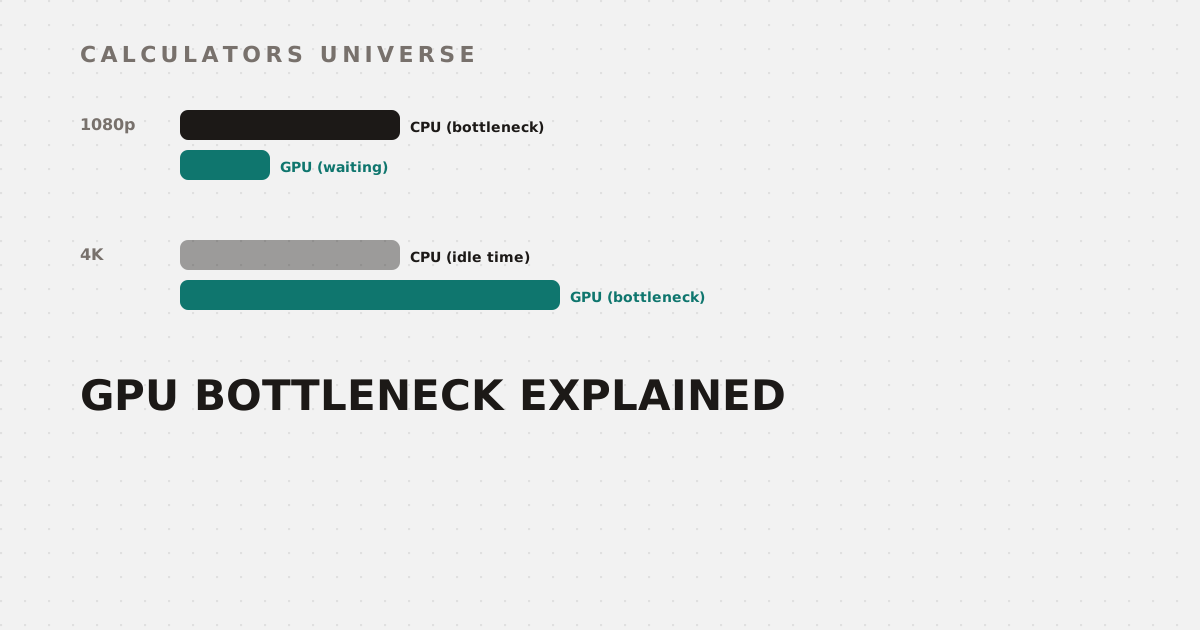
The exact same PC, with the exact same CPU and GPU, can be almost entirely limited by the CPU at 1080p and almost entirely limited by the GPU at 4K. Nothing about the hardware changed — only the resolution did. Here’s why that happens, and how to tell which part is actually holding your frame rate back.
What a Bottleneck Actually Is
Every frame requires two separate jobs: the CPU prepares game logic, physics, AI, and draw calls; the GPU renders the resulting scene to pixels. Whichever job takes longer sets your actual frame rate — the other component simply finishes early and waits. Find your specific CPU/GPU pairing’s bottleneck at 1080p, 1440p, or 4K with the CPU & GPU Bottleneck Calculator.
Why Resolution Changes Everything
Here’s the mechanism: in most games, the CPU takes roughly the same amount of time to prepare each frame’s logic regardless of resolution — it’s doing the same game-state calculations whether you’re rendering at 1080p or 4K. The GPU’s workload, though, scales directly with pixel count: 1080p is about 2 million pixels per frame; 4K is about 8.3 million — four times the work.
GPU render time scales with pixel count; CPU frame-prep time mostly doesn't
At 1080p, the GPU finishes its (relatively light) work quickly, so the CPU’s fixed frame-prep time becomes the actual ceiling — a classic CPU bottleneck. At 4K, the GPU takes roughly four times longer, giving the CPU plenty of idle time to spare — the bottleneck shifts entirely to the GPU. This is exactly why upgrading a GPU alone often produces little FPS gain at 1080p on an older CPU, but delivers its full benefit at 4K. Estimate your real expected FPS per game and resolution with the GPU FPS Estimator.
Average FPS Lies: 1% Lows and Stutter
A second, separate issue hides behind a healthy-looking average FPS number: frame-time consistency. The 1% low is the average frame rate across the slowest 1% of frames — a more reliable “worst case” indicator than raw minimum FPS, which can be thrown off by a single outlier frame. The 0.1% low captures even more extreme spikes — the actual stutters and hitches you feel during play. As a rule of thumb, your 1% low should sit around 70–80% of your average FPS; when it drops well below that, you get visible judder even if the average number looks great on paper. Match your realistically sustained frame rate — not just the average — to an actual monitor refresh rate with the Monitor Hz vs FPS Match Calculator.
Is Your Build Actually Balanced?
Beyond a single bottleneck check, a full build’s CPU, GPU, RAM, and storage need to be roughly proportionate to avoid wasting money on an overpowered part paired with an underpowered one. Get a full tier ranking and balance check with the PC Build Performance Tier Ranker.
Before You Upgrade: Value and Generational Gain
If a bottleneck check points to your GPU, the next question is whether upgrading is actually worth the money. Compare cost-per-frame value across the current GPU market with the GPU Price-to-Performance Calculator, or check the real generational gain — FPS improvement, cost per frame, and power payback period — between your current card and a specific upgrade target with the GPU Generation Upgrade Worth It? Calculator.
Frequently Asked Questions
Why isn’t my new GPU getting higher FPS at 1080p?
Almost certainly a CPU bottleneck — at lower resolutions, the GPU finishes its work quickly, so your CPU’s fixed frame-preparation time becomes the actual limiting factor regardless of GPU power.
What’s the difference between 1% low and minimum FPS?
Minimum FPS is a single slowest frame, which can be a one-off outlier; 1% low is the average across the slowest 1% of all frames, making it a more reliable worst-case performance indicator.
Does a CPU bottleneck mean I wasted money on my GPU?
Not necessarily — the same GPU will show its full performance once you increase resolution, enable more demanding settings, or eventually upgrade the CPU; the headroom isn’t wasted, just not accessible yet at that specific resolution.
Why do bottlenecks shift toward the GPU at 4K?
Because GPU workload scales directly with pixel count (4K has roughly 4x the pixels of 1080p) while CPU frame-prep time stays roughly constant, so the GPU’s now much larger workload becomes the limiting factor instead.
How do I know whether to upgrade my CPU or GPU first?
Check which component is actually the bottleneck at your target resolution and settings first — upgrading the wrong one won’t produce the FPS gain you’re expecting.
Related Calculators
Start with the CPU & GPU Bottleneck Calculator and GPU FPS Estimator to diagnose your specific setup, match your real sustained frame rate to a monitor with the Monitor Hz vs FPS Match Calculator, and check overall build balance with the PC Build Performance Tier Ranker. Before upgrading, compare value with the GPU Price-to-Performance Calculator and GPU Generation Upgrade Worth It? Calculator.
External Resources
- TechPowerUp GPU Database — independent, widely cited specifications database for GPUs across all vendors
- Frame rate — Wikipedia — background on frame rate, refresh rate, and their relationship in real-time rendering